Introduction
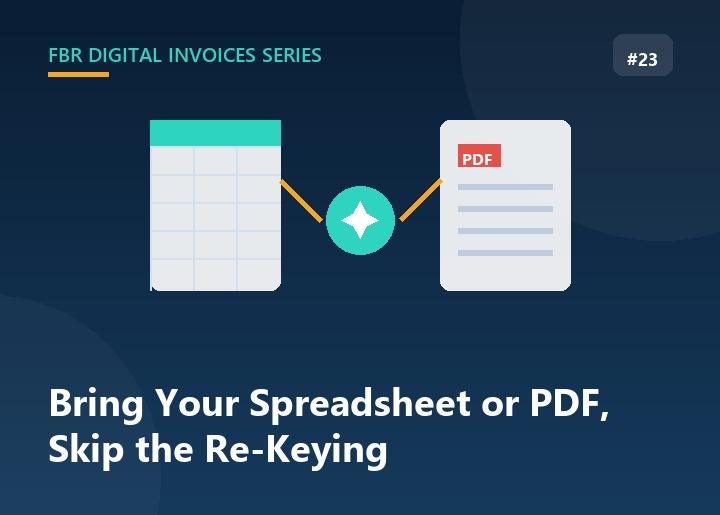
If you’re moving to compliant digital invoicing from an existing spreadsheet, an old system, or a stack of PDF invoices, the least appealing part of the switch is obvious: manually retyping every invoice, line by line. It’s slow, it’s where typos creep into HS codes and tax rates, and it’s exactly the kind of task that shouldn’t need a human doing it in 2026. Here’s how import actually works — for both spreadsheets and PDFs.
Bring Your Spreadsheet: Excel Import
Most businesses already have invoice data somewhere in Excel — whether that’s your own working file or something closer to FBR’s own format. Rather than forcing you to reformat everything into a rigid template, the import matches your columns intelligently.
How the matching works:
- The system scans for your header row automatically — it doesn’t have to be row 1, and it recognizes a wide range of common column names rather than requiring an exact match.
- Field names are matched flexibly. “Buyer Business Name,” “Buyer Name,” and “Buyers Name” all map to the same field, for example — and critically, it also recognizes the terminology used in FBR’s own invoice and sales tax return language, like “Particulars of Buyers,” “Destination of Supply,” and “HS Code.” If you or your accountant already work with FBR-style spreadsheets, the structure will already look familiar.
- Multi-item invoices are supported — just repeat the invoice number on multiple rows, one row per line item, and they’re grouped together automatically.
- Tax calculations happen for you. You don’t need to pre-calculate the sales tax value or total — value excluding tax, tax applicable, and the final total are computed automatically from quantity, rate, tax rate, and any discounts or additional charges you provide.
- Re-uploading is safe. If you import a file with an invoice number that already exists, it updates that invoice rather than creating a duplicate — useful if you need to fix a mistake and re-import rather than deleting and starting over.
- Don’t have a file to start from? A ready-made import template is available to download directly, pre-formatted with the correct headers and number formatting (including the details that matter, like keeping HS codes as text so Excel doesn’t silently mangle a code like
4013.101into something unusable).
One practical note if you’re starting from FBR’s own official bulk-upload template: save your working file in standard .xlsx format before importing. The column structure and field names carry over cleanly — the file format is the only thing to double-check.
Skip Retyping Entirely: AI-Powered PDF Import
Spreadsheets solve the problem when your data is already structured. But a lot of real invoicing data isn’t — it arrives as a PDF from a supplier, gets exported from an old accounting system, or exists only as a scanned document. That’s where AI comes in.
Instead of manually reading a PDF and typing the buyer details, line items, quantities, and tax figures into the system by hand, the AI import feature reads the document directly and extracts the structured data for you — buyer information, item descriptions, HS codes, quantities, rates, and tax details — turning an unstructured PDF into ready-to-use invoice data in a fraction of the time manual entry would take.
A few practical things worth knowing:
- It’s an enabled feature, not something every account has by default. AI-powered import is available on request — if you don’t see it in your account, it’s a matter of getting it activated rather than something broken.
- It handles PDFs directly, and processing can take longer than a typical page load since the extraction runs a genuine document-understanding pipeline rather than a simple text scrape — that’s expected, not a sign something’s stuck.
- Like the Excel import, the extracted data is meant to be reviewed before it becomes a final invoice — AI extraction is dramatically faster than manual entry, but a quick review before submission is still the safer habit, the same way you’d glance over any imported data.
Why This Matters Beyond Convenience
Manual re-keying isn’t just slow — it’s one of the more common sources of the exact errors that cause rejected invoices and FBR notices: a mistyped tax rate, a transposed HS code, a missed line item. Reducing how much data entry happens by hand doesn’t just save time, it removes a real source of the compliance mistakes covered elsewhere in this series. Whether your starting point is a spreadsheet or a PDF, the goal is the same: get your existing data into a properly validated, FBR-compliant invoice without retyping it from scratch.
FAQ
Do I need to reformat my Excel file to match your template exactly? No — the column matching recognizes a range of common header names, including FBR’s own terminology, so most existing spreadsheets work without restructuring. If a required column genuinely can’t be found, you’ll get a clear message telling you what’s missing.
Can I import a macro-enabled FBR template file directly? Save it as a standard .xlsx file first — the data and column structure carry over cleanly, but the file format itself needs to be the standard spreadsheet format rather than a macro-enabled one.
What happens if I accidentally import the same invoice twice? It won’t duplicate — importing an invoice number that already exists updates that invoice instead of creating a second one.
Is AI PDF import available on every plan? It’s an activated feature rather than something on by default — if you’d like it enabled, get in touch.
Conclusion
The fastest way to get your existing invoices into a compliant system isn’t retyping them — it’s importing them. Excel import handles structured data you already have, matching column names flexibly enough that FBR-style spreadsheets fit without reformatting. AI-powered PDF import handles the messier case: a document that was never meant to be machine-readable in the first place. Between the two, most businesses can skip the manual re-entry entirely, which is exactly the point.